Why downloaded file sizes differ often comes down to how the bytes are measured, displayed, or packaged. A different file size does not automatically mean the file is damaged. The most common reasons are different decimal and binary display units, a comparison between logical size and allocated disk space, compression inside an archive, or measurements taken at different points in an HTTP transfer. A size difference can also mean that the two files contain genuinely different bytes, including a different release or an incomplete response.
Start by comparing the exact byte count for the same named artifact. Then check whether either value describes disk allocation, an archive after extraction, or an encoded HTTP representation. File size is useful diagnostic evidence, but a mismatch does not prove corruption or malware, and a match does not prove integrity or safety.
Why downloaded file sizes differ even when bytes match
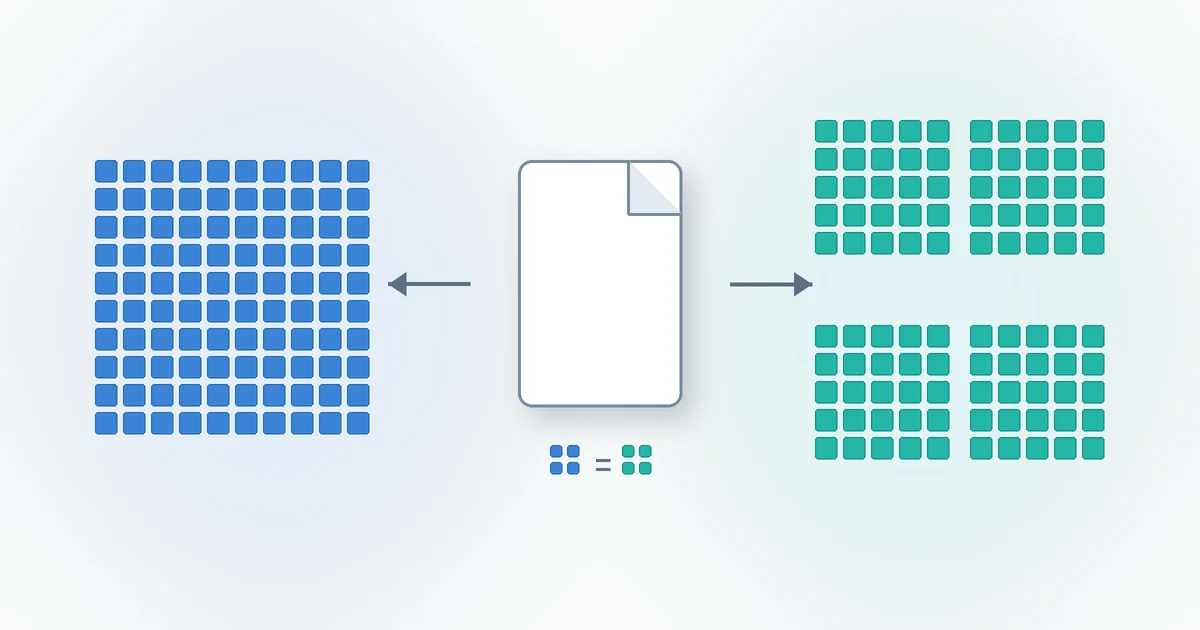
A byte count is unambiguous. A label such as MB is less helpful unless the software states how it converts bytes. Decimal units use powers of 1,000: one megabyte is 1,000,000 bytes. Binary units use powers of 1,024: one mebibyte is 1,048,576 bytes. NIST recommends the binary prefixes KiB, MiB, and GiB for the power-of-1,024 values rather than using KB, MB, and GB for both systems.
The difference becomes visible with larger files. 100,000,000 bytes = 100 MB ≈ 95.37 MiB. A download page showing 100 MB and a file manager showing about 95.37 MiB may therefore be describing exactly the same bytes. Some interfaces still label a binary calculation as MB, which makes the discrepancy look like a change in the file.
Compare the integer byte values when possible. If an interface only shows a rounded value, open its properties or details view. Rounding can turn nearby byte counts into the same displayed file size, so a label such as “100 MB” is not precise enough for byte-level comparison.
Size and size on disk measure different things
A file’s logical size is the number of bytes in its data stream. “Size on disk” is the storage allocated to hold that file. File systems normally allocate space in clusters or allocation units. A small file can occupy a full cluster, and a file that ends partway through a cluster still consumes that allocation.
Microsoft’s guidance on NTFS disk-space differences identifies cluster size, alternate data streams, compression, sparse files, and other file-system behavior as factors that can separate reported file size from consumed disk space. The gap is not a download measurement and does not by itself show that bytes were added during transfer.
Use the logical byte size when comparing a downloaded artifact with the publisher’s stated file size. Use “size on disk” when investigating storage consumption. Copies on NTFS, APFS, ext4, a network share, and cloud-synced storage may have different allocation figures while retaining the same logical content.
Archives change the comparison point
A ZIP, TAR.GZ, or similar archive is one artifact. Its extracted files are other artifacts. Compression removes repetition from the stored representation, so the archive will often be smaller than the total logical sizes of its extracted contents. Already-compressed media can shrink little, and archive metadata or compression settings can affect the result.
Python’s ZIP documentation distinguishes a member’s compressed size from its original file size through the compress_size and file_size attributes. That distinction applies within one archive before file-system allocation is considered. Comparing the ZIP file size with the sum shown for the extracted folder mixes different measurements.
Compare archive to archive first. Confirm that the filename, release, platform, and extension match. If the publisher gives a size or digest for the ZIP, use the ZIP itself rather than an extracted executable. Extraction can also produce folders whose “size on disk” varies with the destination file system.
HTTP can expose several size measurements
HTTP can describe content before or after a content coding such as gzip. RFC 9110 defines Content-Encoding as a property of the selected representation and Content-Length as the decimal number of octets in the associated content. The value does not include HTTP framing bytes. A network panel, progress indicator, server metadata field, and saved-file properties can therefore refer to different layers. This distinction also matters when deciding between cloud storage and file transfer services, because each workflow may expose a different measurement.
Do not assume every browser or download path will decompress a response. Decoding depends on the response headers, request headers, client behavior, and how the resource is delivered. Google Cloud Storage documents decompressive transcoding as a specific behavior: for eligible gzip-encoded objects, it can serve decompressed data and omit Content-Encoding and Content-Length in the response. It also documents conditions where transcoding does not occur. The stored object size, transferred bytes, and saved result are not automatically interchangeable.
HTTP/1.1 framing adds another distinction. RFC 9112 explains how message length is determined and requires a client to record a response as incomplete when a declared Content-Length is not fully received. A failed or interrupted transfer can leave a partial file, although applications differ in whether they retain, rename, or remove it. HTTP metadata helps diagnose that case, but HTTPS only protects the connection according to the protocol and certificate context. HTTPS is not a file safety scan.
Sometimes the artifact bytes really are different
After unit and measurement differences are ruled out, the files may genuinely differ. A download page might offer separate Windows, macOS, Linux, ARM, and x86-64 packages. A publisher may replace a build while retaining a similar filename, or a mirror and main site may update at different times. Language packs, bundled components, signatures, timestamps, and packaging options can also create distinct artifacts.
Dynamic delivery can select a representation based on request headers or URL parameters. A cache, proxy, security gateway, or cloud service may also deliver a representation that is not byte-identical to the one used for a displayed file size. These are possibilities to check, not proof that an intermediary changed the file.
A partial transfer is another genuine byte difference. For related delivery checks, see the guide to sending large files online. Compare status messages, the final byte count, and any publisher-provided digest. When the publisher supplies SHA-256, follow the focused guide to verify a download with SHA-256. That separate procedure is more reliable than trying to infer content equality from a rounded size.
Diagnostic checklist for a size mismatch
- Identify the exact artifact. Match the filename, extension, version, operating system, architecture, language, and release channel.
- Get exact bytes. Replace rounded KB, MB, or GB displays with the integer logical byte count for both values.
- Normalize the units. Determine whether each interface uses decimal MB or binary MiB. Remember that 100,000,000 bytes is 100 MB and about 95.37 MiB.
- Separate size from allocation. Compare logical file size, not “size on disk,” cluster use, cloud quota consumption, or a folder’s allocated space.
- Compare the same stage. Do not compare a compressed archive with its extracted directory or one archive member with the complete package.
- Check HTTP details. Look for
Content-Encoding,Content-Length, transfer completion, redirects, and whether a service performed decompressive transcoding. - Rule out a partial response. Review browser or download-client errors and retry from the publisher’s official page if the transfer did not complete.
- Use a published digest when available. Calculate the same algorithm against the exact downloaded artifact. The Filekub checksum calculator can calculate a digest, but the value still needs a trustworthy reference for comparison.
- Stop before opening an unexplained artifact. Confirm the source and expected release. Treat the mismatch as a reason to investigate, not as a diagnosis of corruption or malware.
What file size cannot establish
Size is a coarse property. Two different files can contain the same number of bytes, and rounding can hide smaller differences. A matching file size does not prove byte-for-byte integrity, publisher identity, or safety. It also does not show that a file is free from malicious content.
A mismatching size proves only that the compared measurements differ. Once both values are confirmed as exact logical byte counts for the same intended artifact, it establishes a byte-count difference. It still does not identify the cause. The explanation could be another release, a different package, content coding, truncation, or another delivery choice.
Use source validation, a publisher-provided cryptographic digest, digital-signature checks where available, and appropriate security scanning as separate controls. No single displayed size replaces them.
Frequently asked questions
Why is the downloaded file smaller than the website says?
The site and your device may use decimal MB and binary MiB, or the site may show a rounded value. Compare exact bytes first. If the exact byte count is lower, check that you selected the same version and that the transfer completed.
Why is size on disk larger than file size?
File systems allocate storage in units such as clusters. A file’s final partial cluster still occupies an allocation unit. Metadata, compression, sparse-file behavior, and alternate streams can also affect disk use.
Why is an extracted folder larger than the ZIP file?
The ZIP stores compressed representations of its members. Extraction restores their logical content, and the destination file system then allocates space for each file. The archive size, extracted logical total, and extracted size on disk are separate figures.
Does a size mismatch mean the download is corrupted or malicious?
No. It means the reported measurements differ. After normalizing units and measurement type, different exact byte counts justify investigation, but size alone cannot determine corruption, tampering, or malware.
Does the same file size prove two downloads are identical?
No. Different byte sequences can have the same length. Compare a trusted publisher-provided digest with a digest calculated from the exact artifact when byte-level verification is needed.
Can HTTPS confirm that a downloaded file is safe?
No. HTTPS protects data in transit between the client and the authenticated connection endpoint. It does not inspect a file for malware or establish that the publisher’s content is harmless.
Once you have confirmed the intended artifact, use Filekub when you need to store or share the checked file. Keep the publisher’s exact filename, version, and digest with it so recipients can repeat the comparison.