A download can have the right name and still be incomplete, altered, or simply the wrong build. To verify a download with SHA-256, calculate the file’s SHA-256 checksum and compare all 64 hexadecimal characters with the value published by the software provider. An exact match means the bytes you downloaded match the bytes used to create that published checksum. A mismatch means you should stop and investigate before opening the file.
This check takes a minute and does not require uploading the file. You can use a built-in command on Windows, macOS, or Linux, or calculate the checksum locally with Filekub’s browser tool. The method works for small documents and multi-gigabyte installers alike.
What SHA-256 verification tells you
SHA-256 is part of the SHA-2 family of hash functions. It reads the file’s bytes and produces a fixed-length digest, usually displayed as 64 hexadecimal characters. NIST describes these digests as a way to detect whether messages have changed since the digests were generated.
That makes a checksum useful after downloading an installer, disk image, archive, firmware package, or another large file. If the provider publishes a SHA-256 value, you can calculate your own value from the downloaded file. Matching values show that both calculations used identical input bytes.
Do not compare only the first or last few characters. One missed character can hide a mismatch. Copy both values into a plain-text editor if the web page wraps the checksum across lines, remove accidental spaces, and compare the complete strings. Uppercase and lowercase letters do not change the hexadecimal value, but every letter and number must otherwise match.
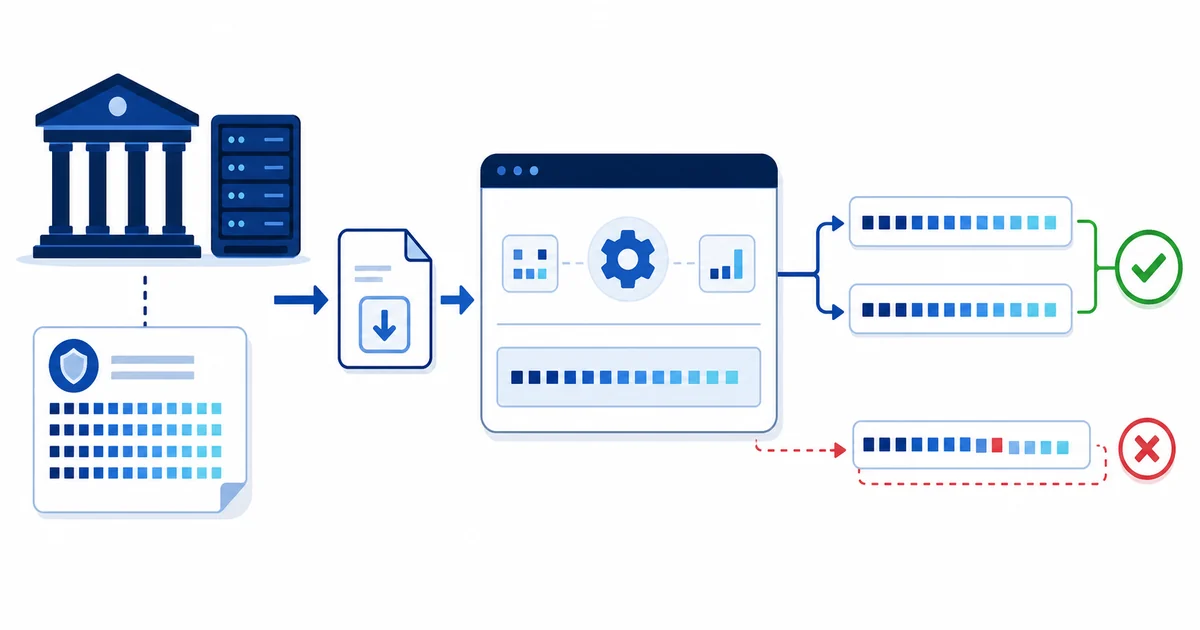
Verify a download with SHA-256 in five checks
- Get the file from the intended source. Use the software provider’s official download page or another source you have deliberately chosen. Avoid lookalike domains and unsolicited download links.
- Find the publisher’s SHA-256 value. It may appear beside the download, in a release-notes page, or in a separate checksum file. Confirm that it refers to the exact filename, version, operating system, and architecture you downloaded.
- Calculate the checksum locally. Use one of the methods below. Point the command or browser tool at the file you actually plan to open, not a similarly named copy in another folder.
- Compare the full values. A valid SHA-256 digest has 64 hexadecimal characters. Compare every character or use a trusted exact-text comparison.
- Act on the result. An exact match completes the integrity check. If the values differ, do not run the file. Recheck the release and filename, download a fresh copy from the official source, and calculate it again.
This is the same basic process whether you verify a download with SHA-256 in a terminal or a browser. The only difference is how the local checksum is calculated.
Calculate SHA-256 in Windows PowerShell
Microsoft’s Get-FileHash cmdlet calculates a file hash and uses SHA-256 by default. Open PowerShell, type the command below, and replace the example path with the location of your download:
Get-FileHash -Algorithm SHA256 -LiteralPath "C:\Users\YourName\Downloads\example.iso"PowerShell returns the algorithm, checksum, and path. -LiteralPath is useful when a filename contains characters that PowerShell might otherwise interpret as a wildcard. You can also type Get-FileHash -Algorithm SHA256 and drag the file from File Explorer into the PowerShell window to insert its path, then press Enter.
To verify a download with SHA-256 on Windows, copy the value in the Hash column and compare it with the publisher’s complete checksum. Microsoft notes that MD5 and SHA-1 should only be used for simple change detection, not for files that need protection against deliberate tampering.
Calculate SHA-256 in macOS Terminal
Open Terminal from Applications > Utilities. Run shasum with the SHA-256 option and the downloaded file’s path:
shasum -a 256 ~/Downloads/example.dmgIf the filename contains spaces, wrap the path in quotes. Dragging the file from Finder into the Terminal window also inserts its full path:
shasum -a 256 "/Users/YourName/Downloads/Example Package.dmg"The first long string in the result is the SHA-256 checksum. Compare it with the value for that exact macOS release. Disk images sometimes include an internal checksum, but that is a separate check; use the publisher’s SHA-256 value when the goal is to compare the downloaded file with a value published outside the file.
Calculate SHA-256 in a Linux terminal
On systems with GNU Coreutils, use sha256sum:
sha256sum ~/Downloads/example.tar.xzGNU documents sha256sum as one of its SHA-2 utilities for computing and checking digests. The command prints the calculated value followed by the filename.
If the provider supplies a checksum file in the standard format, inspect it first to make sure it names the file you downloaded. Then you can ask sha256sum to check it:
sha256sum --check example.tar.xz.sha256A successful result should identify the expected file as OK. A missing file, renamed file, malformed checksum list, or mismatch will produce a different result. Read the message rather than assuming that any command output means the check passed.
Verify a download with SHA-256 in your browser
If you prefer not to use a terminal, open Filekub’s browser checksum calculator. Choose the downloaded file and let the browser calculate its SHA-256 value. The tool processes the selected file in your browser; it does not need to upload the file to calculate the checksum.
Copy the checksum from the provider’s official page and compare it with the result. This can be easier on a shared support call because the person checking the file does not need to adapt a command to a long path. It also avoids confusing MB/s with Mbps, which matters for transfer estimates but has no effect on the checksum. The large-file sending guide explains the upload-by-link workflow, while the storage and sharing guide covers organizing files before distribution.
For a sensitive or high-risk download, a local browser calculation should be one part of your check, not a reason to ignore operating-system warnings, digital signatures, publisher guidance, or your organization’s software policy.
What to do when checksums do not match
A mismatch does not tell you why the files differ. The download may be incomplete, the provider may have replaced the release without updating the page, you may have selected the wrong platform build, or the file may have changed after publication. Treat the result as a stop signal.
- Check the version, filename, platform, and CPU architecture beside the published checksum.
- Delete or quarantine the mismatched copy according to your normal device policy. Do not open it just to see whether it works.
- Download the file again from the provider’s official page, preferably over a stable connection.
- Calculate SHA-256 on the new copy and compare all 64 characters again.
- If the second copy still differs, contact the publisher or use its documented support channel. Do not search random forums for a checksum that happens to match.
When a download repeatedly fails or arrives with an unexpected size, read the provider’s release notes and check available disk space before trying again. For general storage planning, Filekub’s guide to how cloud storage works explains how local and remote copies fit into a file workflow.
Limits of a checksum
A checksum answers a narrow question: does this file match the bytes represented by the published digest? It does not tell you whether the software is useful, free of defects, legally licensed for your use, or suitable for your device.
The source of the reference value matters too. If an attacker can replace both a file and the checksum shown beside it, the two may still match. Prefer a checksum published through the software provider’s official release channel. Where the publisher offers a digital signature or signed checksum list, follow its signature-verification instructions as well.
SHA-256 verification also does not scan a file for malware. A matching value only ties your copy to the publisher’s stated value. Keep your operating system and security controls current, and follow the publisher’s installation guidance. Avoid claims such as “virus-free” based on a checksum alone.
Once the source and reference value are trustworthy, the process is simple: calculate, compare, and stop on any mismatch. Use the same method each time you verify a download with SHA-256, especially for installers, firmware, and files that will be distributed to other people.
Use Filekub for a verified file workflow
After you verify a file, keep the checksum with your release notes so recipients can repeat the check. If you need to distribute a large package, upload it to Filekub and share the link, then publish the SHA-256 value on a separate trusted page. Recipients can calculate the file’s checksum before opening it.