Good file storage

This guide gives individuals, freelancers, students, and small teams a practical workflow they can use with almost any cloud storage service. If you need the basics first, see our introduction to cloud storage.
File storage and file sharing are different jobs
File storage is the system you use to keep, organize, retrieve, and preserve files. File sharing is the controlled process of giving another person access to a file or folder.
The distinction matters. A tidy storage system can still be unsafe if links are shared too widely. A secure sharing process can still fail if nobody knows which version is final or if the only copy disappears.
Cloud storage is useful, but it is not your entire backup plan
A cloud copy can protect you from some local problems, such as a lost laptop or failed drive. However, synchronization and backup are not the same thing: a mistaken deletion or unwanted change may also sync. The U.S. Cybersecurity and Infrastructure Security Agency (CISA) recommends keeping three copies of important files on two types of storage, with one copy off-site. It also recommends testing that files can actually be restored.
How to choose a file storage and sharing service
Start with your real workflow rather than a long feature list. Ask these questions before moving important data:
- Capacity: Is there enough room for your current files and expected growth?
- Access: Can the people who need the files use the service on their usual devices?
- Sharing controls: Can you limit access to the intended recipients and remove access later?
- Account protection: What authentication options are available, and how will you recover the account?
- Recovery: What happens if a file is deleted, overwritten, or corrupted?
- Portability: Can you download your files in usable formats if you decide to leave?
- Data handling: Do the provider’s current privacy, security, retention, and acceptable-use terms fit the sensitivity of your files?
Do not rely on a marketing label such as “secure” by itself. Match the service to the information you plan to store, and verify current provider documentation before uploading confidential, regulated, or irreplaceable material. The UK National Cyber Security Centre (NCSC) advises organizations to understand a cloud application’s purpose, the sensitivity of the data involved, and the access controls they need.
A practical file storage and sharing workflow
1. Decide what belongs in the cloud
Sort files into simple sensitivity levels, such as public, everyday private, confidential, and highly sensitive. Public brochures and class notes do not need the same handling as identity documents, client records, financial data, or health information.
For sensitive or regulated data, check applicable laws, contracts, school policies, or workplace rules before uploading. When in doubt, ask the responsible person rather than assuming any consumer service is approved.
2. Build a folder structure that will still make sense later
Use a small number of predictable top-level folders. A freelancer might use Clients, Operations, Templates, and Archive. A student might use one folder per term and one subfolder per course.
Name files for retrieval, not just for today. A pattern such as project-document-YYYY-MM-DD-v01.ext is easier to scan than final-new-really-final.ext. If several people edit files, agree on who owns the master copy and how a version becomes final.
3. Upload in priority order
Move active documents and irreplaceable personal files first, then large files you could recreate later. This keeps limited space focused on material that matters.
Filekub currently advertises 15 GB of free storage. If that amount fits your needs, you can review Filekub’s current offering and decide whether it suits your workflow. Verify the latest terms and available controls on the live service before moving important data.
4. Share the smallest useful scope
Share one file instead of a whole folder when that is enough. Give access only to the intended recipient, and choose the least access needed. For example, someone reviewing a document may not need permission to change or redistribute it.
The NCSC warns that sharing misconfiguration can expose data unintentionally. Its guidance recommends keeping resources private by default unless a trusted user explicitly shares them, clearly identifying recipients, and making it possible to revoke access.
Before sending access, check:
- Is this the correct file and latest version?
- Does it contain hidden sheets, comments, tracked changes, metadata, or unrelated personal information?
- Is the recipient address correct?
- Are you sharing only the required file or folder?
- When should access end?
5. Keep independent backups
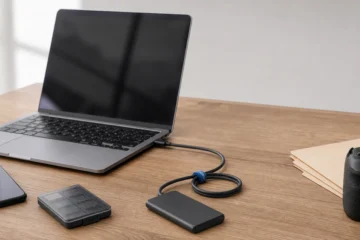
For files you cannot afford to lose, use the 3-2-1 approach: keep the working copy plus two backups, use two types of storage, and keep one copy off-site. A practical personal setup could combine a working cloud copy with an external drive and another separate backup location.
Backups are useful only if they can be restored. Schedule a small restore test every few months: choose a few files, recover them to a temporary location, open them, and confirm that they are complete.
If ransomware is part of your risk planning, read our guide to understanding and reducing ransomware risk. A cloud account should complement, not replace, a broader recovery plan.
6. Review and clean up
Once a month, review shared links or recipient access, remove people who no longer need files, archive completed work, and delete redundant downloads. For team projects, make access review part of offboarding when someone leaves a role or project.
Track storage use as well. If you are comparing no-cost tiers, our overview of free cloud file storage options explains the basic trade-offs, but always recheck current limits on each provider’s website.
Three example workflows
Sending a large project deliverable
- Place only the approved deliverables in a clean folder.
- Open each file and check that it is the final version.
- Remove drafts, private notes, and unrelated assets.
- Share access only with the named client contact.
- Confirm receipt through a separate message.
- Remove access when the agreed review period ends.
Protecting personal photos
- Organize photos by year and event.
- Upload the irreplaceable sets first.
- Keep another copy on separate storage.
- Test a small restore rather than assuming every upload succeeded.
- Share selected albums or files instead of the full library.
Running a small team folder
- Assign one owner for the folder structure and access list.
- Create separate locations for active work, approved files, and archives.
- Use consistent names and a clear final-approval process.
- Review external access on a fixed schedule.
- Remove access promptly when a project or role ends.
Common mistakes to avoid
- Treating a shared link as permanent: review it and remove access when the task ends.
- Sharing a parent folder by accident: confirm the exact scope before sending.
- Keeping only one copy: maintain independent backups for important files.
- Using vague file names: add a project name, date, and version where helpful.
- Uploading first and reading the rules later: check terms and data requirements before moving sensitive material.
- Never testing recovery: perform periodic restore checks.
Frequently asked questions
Is cloud storage the same as backup?
No. Cloud storage may keep a remote copy, but synchronization can also propagate deletions or unwanted changes. Important files should have separate, tested backups.
What is the safest way to share a file?
Share only the required file, identify the intended recipient carefully, grant the least access needed, inspect the document for hidden or unrelated data, and revoke access when it is no longer necessary.
How often should I review shared access?
Review access whenever a project ends or a person changes roles. A monthly check is a practical baseline for active personal or small-team storage.
Authoritative guidance
- CISA: Back Up Business Data
- UK NCSC: Using Software as a Service Securely
- NIST SP 800-210: General Access Control Guidance for Cloud Systems
Start with one well-organized folder
You do not need to reorganize your entire digital life in a day. Choose one active folder, apply a clear naming system, create a separate backup, and review who can access it. If 15 GB is enough to begin, visit Filekub to review the current service and decide whether it fits your storage plan.