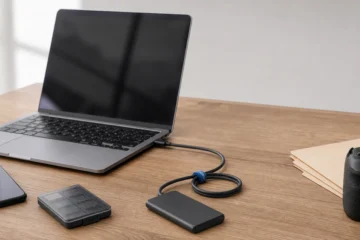
Filekub vs Google Drive for file sharing is mainly a choice between a controlled handoff and an ongoing workspace. Filekub’s current homepage documents account-based storage, guest share links, passwords, expiry dates, and a choice over download access. Google Drive has the stronger fit when recipients need viewer, commenter, or editor roles, shared folders, and desktop sync. The right choice depends on whether the file is being delivered or worked on.
For a public link today, Google documents an “Anyone with the link” option that can work without recipient sign-in. For continuing work, its role system and desktop app make the decision clearer. Do not choose either service from a capacity headline alone, and do not assume a link is public until you test the exact item in a clean browser.
Quick verdict
- Choose Google Drive when the recipient should comment, edit, work inside shared folders, or keep files synchronized on a computer.
- Choose Filekub for a controlled delivery link when a password, expiry date, or view-versus-download choice matters more than collaboration. Those controls are documented on Filekub’s current official homepage.
- Test either link while signed out before sending it. Google says “Anyone with the link” can work without sign-in; Filekub says a recipient can use a shareable link without an account. Account policy and the exact setting still matter.
The products overlap at the share-link step, but they are not identical. Filekub’s documented controls support a delivery workflow. Google’s roles, inherited folder permissions, and desktop app support work that continues after the first share.
How this comparison was checked
The research was refreshed on September 1, 2026 using only official Google and Filekub sources. It covers Google’s storage, sharing, file-size, and desktop help pages plus Filekub’s rendered public homepage in a clean signed-out browser. No numeric paid pricing is included because plan context, billing term, region, and promotions can change the comparison.
Four dimensions were kept separate: account storage, per-file ceiling, recipient sign-in, and collaboration. A published limit is not the same as unused account capacity. A homepage statement is also product documentation, not proof that a particular sender chose the right setting.
This is a local editorial bundle, not an authenticated account test. Before an important delivery, upload a harmless sample, create the intended share, open it in a fresh signed-out browser, and check preview and download separately. That practical check applies to both products.
Filekub vs Google Drive comparison
| Decision point | Filekub | Google Drive |
|---|---|---|
| Public recipient access | Filekub says a shareable link can be sent to someone without an account. Test the final link signed out. | “Anyone with the link” can use a file without signing in. Work or school settings can limit sharing. |
| Access roles | The homepage documents a view-versus-download choice for supported previews; editing and commenting are not claimed here. | Viewer, commenter, and editor roles are documented for My Drive files. |
| Desktop sync | Not claimed. Filekub describes browser access without installing a desktop sync app. | Drive for desktop automatically synchronizes edits between the computer and Google Drive. |
| Free account storage | 15 GB is documented for a free Filekub account. | Up to 15 GB at no charge, shared across Drive, Gmail, and Photos. |
| Technical file ceiling | Up to 10 GB per file, provided the account has enough available storage. | Google lists “all other files” up to 5 TB, but available account quota still constrains what can be stored. |
| Password, expiry, revocation | Password and expiry controls are documented. Revocation behavior was not checked, so no revocation claim is made. | A public-link password was not evidenced on the checked sharing page. Expiration is described only for eligible work or school accounts, so it is not treated here as a general public-link feature. |
| Paid price | Omitted; no comparable, same-context amount is used. | |
“Not claimed” does not mean a feature is absent. It means the checked official source did not support using it in this comparison. That distinction matters when account type, administrator policy, and product changes can alter the result.

What a Google Drive public link does
Google’s sharing help separates Public, Anyone with the link, and Restricted access. “Public” can make a file searchable and accessible without sign-in. “Anyone with the link” makes possession of the URL the practical access boundary and also works without Google sign-in. Restricted access is limited to people who have been granted access.
For a finished PDF, archive, or media file, “Anyone with the link” may be enough. The recipient can open the link without creating a Google Account, and viewer access permits downloading by default unless the owner changes the applicable setting. Google also notes that the owner’s name and email are visible when a file link is shared.
Work and school accounts need extra care. Google states that an organization may prevent external sharing, and some options depend on the account. Check the final sharing dialog and then test from outside the organization rather than assuming a personal-account tutorial applies.
Where Google Drive is clearly stronger
Google Drive is built for work that continues after the first share. A viewer can open a file, a commenter can add feedback, and an editor can change content. Folder access can carry through to the items inside it, so teams can maintain a working collection rather than sending a new delivery link for every revision.
Drive for desktop adds a second advantage: Google says edits synchronize automatically between the computer and Drive. That is useful when files need to remain available in familiar desktop folders or move between browser and local applications. It also introduces operational questions about local disk space and synchronization, so it should not be confused with a simple download-only handoff.
If you first need the category distinction, read cloud storage vs file transfer. For the mechanics of guest access, use the separate guide to share files without recipient login. Those pages own the broad concepts; this page owns only the named Filekub and Google Drive decision.
When Filekub may fit better
Filekub makes more sense when the job is “make this finished file available under these delivery rules.” Its homepage documents password protection, an expiry date, and control over whether a recipient can only view a supported file or also download it. That is a more delivery-focused set of choices than Google Drive’s collaboration roles.
The boundary is just as important as the benefit. This pass did not use an authenticated Filekub account, so it does not claim an exact setup sequence, default setting, revocation behavior, encryption at rest, malware scanning, desktop sync, collaborative editing, or any paid price. The official homepage supports only the statements attributed to it.
Try the Filekub recipient path with a non-sensitive sample before using it for real work. Record the account state, file type and size, share setting, signed-out result, redirects, and any unexpected login wall.
Run a recipient test before sending
- Use a harmless sample with the same file type as the real delivery.
- Create the intended share while signed in as the sender.
- Copy the final link without changing it.
- Open a private browser window with no sender session.
- Test open, preview, and download separately.
- Repeat on a phone or ask a recipient outside your organization to test.
- Save the date, account type, setting, and result with the project notes.
If the recipient must comment or edit, test that exact role too. If the handoff is download-only, do not grant broader permissions merely because they are available. For a broader delivery workflow, see how to send large files online.
Keep storage and file limits separate
A free Google Account includes up to 15 GB shared across Drive, Gmail, and Photos. That is account storage, not a promise that every account has 15 GB free at the moment you upload. Existing mail, photos, backups, and Drive files can consume the quota.
Google separately lists “all other files” at up to 5 TB. Filekub lists uploads up to 10 GB per file and explicitly says the account must have enough available storage. Both are technical ceilings, not promises of unused capacity. Filekub’s free account is documented at 15 GB; Google’s no-charge storage is up to 15 GB shared across Drive, Gmail, and Photos.
Decision checklist
- Is this a final download or a file people will continue to edit?
- Does the recipient need viewer, commenter, or editor access?
- Must the link work without a Google sign-in?
- Can a work or school administrator restrict external access?
- Does the file fit the account’s available quota, not merely a published technical ceiling?
- Has the exact recipient path been tested while signed out?
- Are you relying on a control that the checked official page did not document?
Choose Google Drive when roles, folders, and desktop synchronization are central. Choose Filekub when its documented password, expiry, and view-versus-download controls match a finished-file delivery. In either case, test the exact link from the recipient’s side.
Sources
Official sources checked September 1, 2026:
- How existing storage works with Google One
- Share files from Google Drive
- Use Google Drive for desktop
- Files you can store in Google Drive
- Filekub product homepage (rendered in a clean signed-out browser; authenticated control behavior was not tested)