If you are asking, “why is my upload slow?”, one part of the path usually cannot keep up: your upstream internet rate, Wi-Fi link, another device, the computer itself, the route to the service, or the receiving service. Test one layer at a time. Changing five settings at once makes the result harder to interpret.
Start with a measured upload speed, not the larger download number on your plan. Then compare Wi-Fi with a wired connection, pause other traffic, try one small and one large file, and test another service or network if the problem remains.
Why is my upload slow? Run this diagnosis
Use the same file for each comparison and write down the result. A five-minute controlled test tells you more than repeatedly restarting the upload without changing a single condition.
- Measure upload speed. Run a reputable speed test and record upload Mbps, latency, and packet loss if available.
- Check the direction and units. File uploads use upstream capacity. A transfer window may show MB/s while a speed test shows Mbps.
- Try Ethernet. Connect the same computer directly to the router if practical and repeat the upload speed test.
- Pause competing work. Stop cloud backup, video calls, game updates, synchronization, and other large transfers on your devices.
- Keep the computer awake. A sleeping computer can stop the transfer rather than merely slow it.
- Compare another destination. If one service is slow while another accepts the same file normally, the bottleneck may be beyond your local connection.
- Compare another network. A test on a trusted second connection helps separate the original ISP or router from the device and destination.
Do not use a confidential client file for troubleshooting on an unrelated service. A locally created test file with no private information is enough.
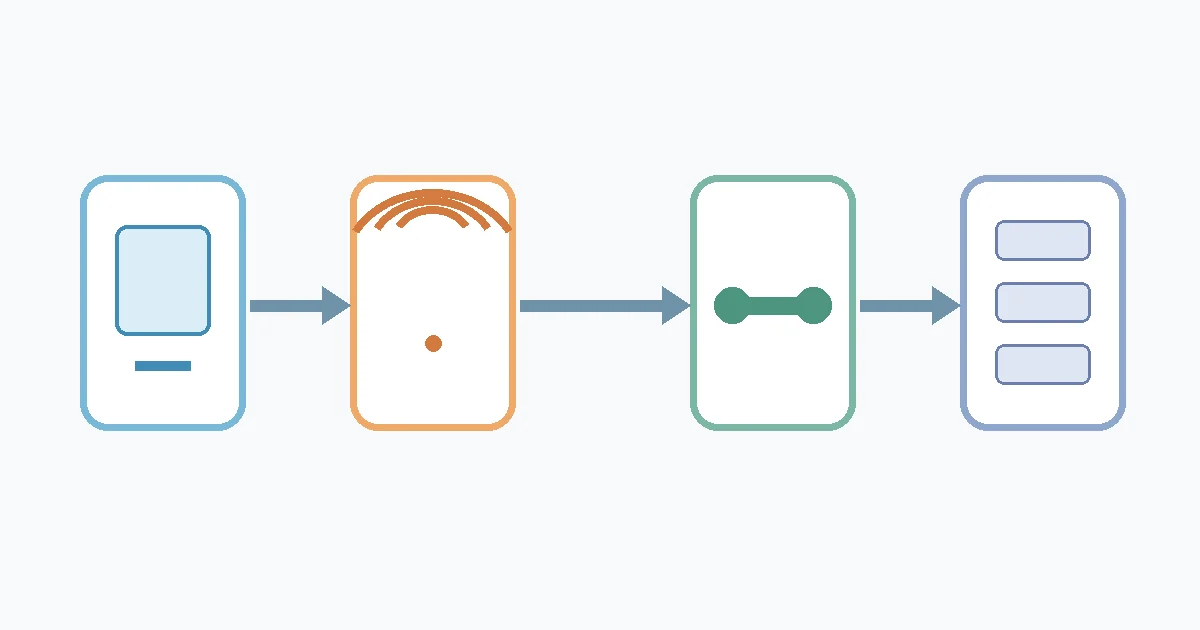
Check upload speed, not download speed
The FCC defines typical upload speed as the rate at which a device sends data to other devices. Consumer broadband labels list upload and download as separate figures. A plan can therefore download quickly while providing much less upstream capacity.
Suppose a plan measures 300 Mbps down but only 20 Mbps up. The 20 Mbps result is the relevant starting point for sending a file. At the unit-conversion limit, 20 Mbps equals 2.5 MB/s because one byte contains eight bits. Real application throughput can be lower.
The distinction between bandwidth and throughput matters here. Cloudflare describes bandwidth as the maximum amount of data that can pass through a network at a time, while throughput is the amount that actually passes during a period. Latency and other conditions can keep throughput below the nominal bandwidth.
Read Mbps vs MB/s before comparing a speed-test number with a browser transfer rate. The units often make an apparently large gap much smaller.
Use a sustained result
A brief upload speed test and a long upload do not measure identical work. Record several tests at different times, but do not cherry-pick only the fastest. If the result falls sharply only during busy household hours, competing traffic or ISP congestion is more plausible than a permanently slow device.
Watch latency and packet loss
Large uploads involve repeated communication between sender and receiver. High latency increases the time for that back-and-forth exchange. Lost packets can require retransmission, so a connection may feel slow even when its headline Mbps figure looks adequate.
This does not mean a single high-latency reading identifies the cause. Compare results over the same connection and then across Ethernet, Wi-Fi, and a trusted second network.
Rule out Wi-Fi interference and distance
Wi-Fi is shared by devices using the same channel. Apple lists connection rate, ISP bandwidth, and the number of devices on the channel as factors in internet throughput. It also identifies interference and distance from the access point as major influences on observed maximum throughput.
The cleanest comparison is an Ethernet test from the same computer. If the wired upload speed is much faster and stable, focus on the wireless link rather than changing browser or cloud settings.
- Move closer to the access point and remove avoidable physical obstacles.
- Try the router’s other supported band when the signal remains strong.
- Avoid placing the router beside metal cabinets, microwaves, cordless-phone bases, or other likely interference sources.
- Update router firmware through the manufacturer’s supported process.
- Do not change channel width or advanced radio settings blindly. Record the old setting and follow the router vendor’s guidance.
A weak Wi-Fi result does not prove the internet plan is slow. Likewise, a fast local link does not prove that the ISP or remote destination can sustain the same rate.
Pause competing traffic
Upstream capacity is shared. A video call, phone photo backup, security-camera stream, cloud synchronization client, or operating-system update can consume part of it. Another person may be sending data even when your own computer looks idle.
Microsoft recommends avoiding other apps and other internet activity during a large OneDrive transfer. It also suggests a wired connection and notes that uploads may perform differently when fewer people are using the household connection or the ISP network.
Pause only what you recognize. Do not disable endpoint protection or the firewall to improve upload speed. If a business security tool appears to interfere, record the exact error and ask the administrator to inspect its logs and policy rather than bypassing it.
Check hidden background senders
Review cloud backup, photo sync, peer-to-peer update delivery, and any application showing upstream network activity. On a managed computer, use the approved system monitor or ask IT. End tasks only when you understand what they do and can restart them safely.
Router traffic statistics can help identify a busy device, but not every consumer router reports them accurately. Treat the display as a clue and confirm it by pausing the known workload.
Check the device and browser
The network is not the only possible limit. Microsoft notes that large-transfer time can depend on the computer as well as the internet connection and server location. Reading a large file from a slow or failing drive, scanning it, hashing it, encrypting the connection, and processing it in the browser all require local resources.
- Keep enough free disk space for the browser and operating system to work normally.
- Close unnecessary CPU-, memory-, disk-, and network-heavy applications.
- Use a current supported browser, then retry in a clean private window if an extension may be interfering.
- Keep the device awake and connected to power for a long transfer.
- If one file always fails, create a harmless test file of similar size to separate file-specific trouble from a general upload speed problem.
If the computer becomes unresponsive, the drive reports errors, or the network adapter repeatedly disconnects, stop treating the issue as a simple upload speed problem. Back up important data through a known-good method and diagnose the device.
Separate a route problem from a service problem
An upload crosses several layers after leaving the router. Cloudflare notes that internet traffic can pass through multiple networks and that distance and network equipment add latency. The receiving service may also enforce a file-size limit, account quota, rate limit, maintenance window, or session timeout. Upload speed can change at any of these layers.
Look for an explicit error before assuming the transfer is merely slow. A quota, permission, expired session, unsupported filename, or maximum-size rejection needs a different fix.
| Observed pattern | More likely area to test | Next comparison |
|---|---|---|
| All services are slow on Wi-Fi, but Ethernet is normal | Local wireless link | Distance, interference, band, router |
| All services are slow on every device | ISP, modem/router, or shared traffic | Quiet-time test and ISP status |
| One service is slow on multiple networks | Destination or route to it | Service status and support |
| One browser is slow, another is normal | Browser profile or extension | Clean profile and supported version |
| One file fails at the same point | File, limit, session, or local read | Harmless test file and explicit limits |
A VPN or corporate proxy changes the route and may apply inspection or policy. Test without it only when your organization permits that change. Never bypass a required control for a production or client file.
Estimate a realistic completion time
Once you have a sustained upload speed result, use the Filekub file transfer time calculator. Enter the measured upload speed and the file’s actual unit. The calculator separates decimal GB from binary GiB and shows both an ideal value and a planning range.
The guide to uploading 10GB includes worked examples, while the broader guide to sending large files online covers delivery when email attachments are too small. Add margin for fluctuations, validation, and any final processing after the progress bar reaches 100 percent.
For delivery, wait until the service confirms the upload is complete before sending a link. If you need a browser-based file-sharing route after testing the connection, open Filekub and verify the finished-upload state before sharing.
Frequently asked questions
Why is my upload slow but download fast?
Your internet plan may provide different upstream and downstream rates. Check the plan’s typical upload speed and run an upstream test. Wi-Fi, shared traffic, the device, network route, and destination can reduce the application result further.
Will Ethernet make every upload faster?
No. Ethernet can improve upload speed when Wi-Fi is the bottleneck. It cannot raise the ISP’s upstream limit or fix a slow destination. A wired comparison is useful because it narrows the diagnosis.
Should I restart the router?
A controlled restart can clear a temporary fault, but record the current test first and follow the manufacturer’s process. Restarting repeatedly without comparing results hides whether anything changed and temporarily disconnects other users.
Does compressing a file improve upload speed?
Only if compression makes the file meaningfully smaller. Many videos, photos, archives, and installers are already compressed. Creating another archive can add processing time without reducing enough bytes to matter.
Can antivirus software slow an upload?
Security software may inspect files or network activity, but do not disable it as a routine upload speed test. Use logs and approved administrator support to investigate a repeatable conflict.
Why does the upload stop when I close the laptop?
Closing the lid often puts the computer to sleep. Microsoft notes that sleeping stops uploads and downloads. Keep the device awake, powered, and ventilated according to its settings and manufacturer guidance.